
Download NASA TV Widget – Live Space Streams, Free Dashboard Tool
Overview
The NASA TV Widget brings the excitement of space exploration straight to your desktop dashboard without the need to open a web browser. Designed for Windows, macOS, Android, and iOS platforms, this lightweight (yet surprisingly feature‑rich) widget streams live NASA television, archival footage, and educational programming directly onto the screen you already use for quick glances at weather, calendars, or system performance. Whether you’re a seasoned astronautics enthusiast or simply enjoy the occasional glimpse of a rocket launch, the widget offers a convenient, one‑click way to stay updated on NASA’s latest missions, shuttle launches, and scientific breakthroughs.
The widget automatically detects the current NASA TV schedule and displays the appropriate feed, meaning you never have to search for “NASA live stream” again. While the visual fidelity can fluctuate depending on your internet bandwidth and the source quality, the overall experience remains smooth enough for daily use. One important consideration, however, is memory consumption: the widget can be memory‑intensive, especially when running alongside multiple other applications or widgets. For users with limited RAM, it’s advisable to enable the widget only when you plan to watch NASA content, or to remove it from the dashboard during heavy multitasking sessions.
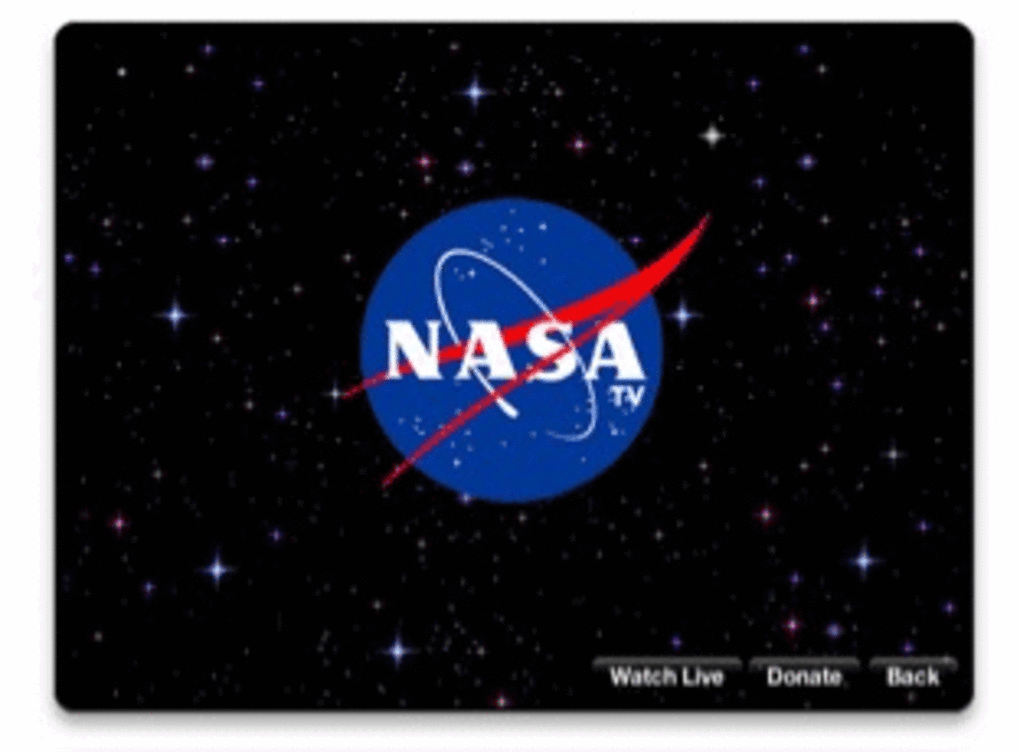
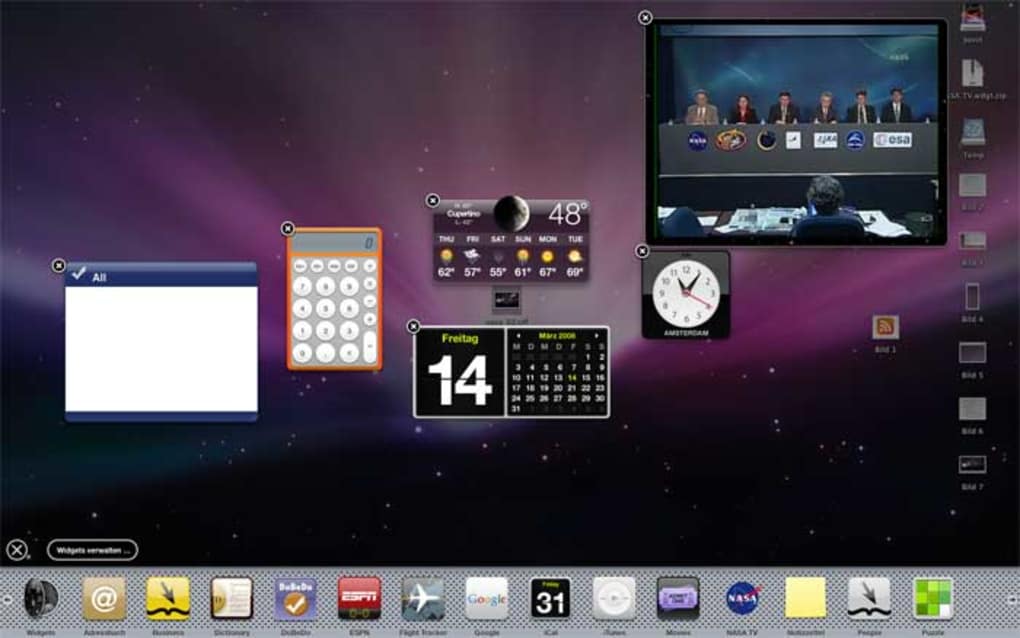
Beyond live coverage, the NASA TV Widget also gives you quick access to a library of historical footage and educational clips, making it a valuable resource for teachers, students, and space hobbyists. The interface is intentionally minimalistic—just a video window with a small control bar for play/pause, volume, and full‑screen toggling—so it blends seamlessly with other dashboard elements. In short, the NASA TV Widget is a free, secure, and constantly updated tool that puts the universe at your fingertips, provided you have a modest amount of system resources to spare.
Key Features
- Live NASA TV streaming: Automatic detection of the current broadcast schedule (launches, ISS updates, press conferences).
- Historical archive access: Quick shortcuts to classic missions, rover landings, and educational documentaries.
- Cross‑platform compatibility: Works on Windows 10/11, macOS 10.13+, Android 8.0+, and iOS 13+.
- Compact dashboard integration: Resizable widget that fits into any screen layout without obstructing other tools.
- Low‑latency playback: Optimized streaming protocols ensure minimal delay between live events and on‑screen display.
- Customizable settings: Options for default video quality, auto‑pause when the widget loses focus, and RAM usage limits.
- Secure updates: Automatic, signed updates delivered via NASA’s CDN to guarantee authenticity and security.
- Lightweight controls: Simple play/pause, volume, and full‑screen buttons; no intrusive ads or pop‑ups.
- Educational resource links: Direct shortcuts to NASA’s official learning portals and mission briefings.
- Battery‑friendly mode (mobile): Reduces frame rate when the device is on battery power to extend usage time.
Installation & Usage Instructions
Getting the NASA TV Widget up and running is a straightforward process that takes just a few minutes. Follow these steps to install and start enjoying live space coverage on your dashboard:
- Download the installer: Visit the official NASA TV Widget page (or the trusted app store for your platform) and click the “Download” button. The file is signed and free of any hidden fees.
- Run the installer: On Windows, double‑click the .exe file; on macOS, open the .dmg and drag the widget into the Applications folder; on Android, tap the .apk to begin installation; on iOS, use the TestFlight link provided by NASA.
- Grant permissions: The widget requires network access to stream video and, optionally, permission to display over other apps (on mobile). Accept these prompts to ensure seamless operation.
- Configure initial settings: Upon first launch, a quick setup wizard asks you to choose default video quality (Auto, 720p, 1080p) and whether the widget should start automatically with your system.
- Add to your dashboard: On Windows and macOS, right‑click the widget’s icon in the system tray or menu bar and select “Pin to Dashboard.” On Android, add the widget from the home‑screen widget picker; on iOS, use the “Add to Home Screen” option.
- Start watching: The widget will instantly load the current NASA TV feed. Use the small control bar at the bottom to pause, adjust volume, or switch to full‑screen mode. If you want to view archived content, click the “Library” button to browse available recordings.
- Manage resources: If you notice high RAM usage, open the widget’s settings (gear icon) and enable “Memory Saver Mode.” This reduces buffer size and lowers CPU usage without significantly impacting video quality.
- Keep updated: The widget checks for updates every 24 hours. When a new version is available, you’ll receive a non‑intrusive notification. Click “Update Now” to download the latest security patches and feature enhancements.
After installation, the widget becomes a permanent fixture on your dashboard, automatically refreshing whenever NASA broadcasts a new event. You can also right‑click (or long‑press on mobile) the widget to temporarily hide it or remove it entirely if you need extra screen real estate. The flexibility of the NASA TV Widget makes it suitable for both casual viewers who just want to see a launch on the hour and power users who track multiple mission feeds throughout the day.
Compatibility & System Requirements
The NASA TV Widget has been engineered to run on a wide variety of operating systems and hardware configurations, ensuring that virtually any user can benefit from live NASA content. Below is a detailed breakdown of the supported platforms and the minimum specifications needed for optimal performance:
- Windows: Windows 10 (64‑bit) or later. Minimum 2 GB RAM, 500 MB free disk space, and a stable broadband connection (minimum 3 Mbps download).
- macOS: macOS 10.13 (High Sierra) or later. Requires 2 GB RAM, 500 MB free disk space, and an internet connection of at least 3 Mbps.
- Android: Android 8.0 (Oreo) or newer, with at least 1.5 GB RAM and 300 MB of storage. The widget works best on devices with a minimum screen resolution of 720p.
- iOS: iOS 13 or later. Requires 1 GB RAM, 300 MB storage, and a Wi‑Fi or cellular connection of at least 3 Mbps.
While the widget is designed to be lightweight, it does rely on buffering video streams, which can be memory intensive. Users with less than 4 GB of RAM on desktop platforms may notice occasional slowdowns if multiple high‑resource applications are running concurrently. In such cases, enabling “Memory Saver Mode” (available in the widget’s settings) will reduce the buffer size and help maintain system responsiveness.
The NASA TV Widget also supports high‑definition streams (up to 1080p) when bandwidth allows. For users on limited data plans or slower connections, the widget automatically switches to a lower bitrate to prevent buffering. Because the widget pulls video directly from NASA’s official CDN, it benefits from global edge servers that minimize latency and deliver consistent quality worldwide.
Pros and Cons
Pros
- Free and open‑source; no hidden fees or subscriptions.
- Automatic live‑feed detection removes the need to manually select channels.
- Cross‑platform support covers the major desktop and mobile operating systems.
- Low‑latency streaming provides near‑real‑time coverage of launches and events.
- Integrated access to NASA’s historical archives and educational resources.
- Secure, signed updates protect against tampering and ensure the latest features.
- Customizable memory‑saver mode for low‑spec devices.
- Minimal UI that blends with existing dashboard layouts.
- Battery‑friendly options for mobile users.
- Regular updates from a trusted government source.
Cons
- Can be memory‑intensive on systems with limited RAM, especially when other widgets are active.
- Video quality varies based on internet speed and NASA’s source stream.
- No offline download capability; requires constant internet connection.
- Limited customization of the UI beyond size and placement.
- Occasional delay in the schedule update if NASA’s broadcast changes last‑minute.
- On mobile, the widget may close if the OS reclaims memory in the background.
The NASA TV Widget delivers an impressive amount of value for a free tool. Its seamless integration with desktop dashboards makes it ideal for anyone who wants a quick glance at live space events without opening a browser. The automatic feed detection and built‑in archive access are standout features. While the memory usage can be a concern on low‑spec machines, the widget’s memory‑saver mode mitigates most issues. Overall, it’s a solid addition for space enthusiasts and casual viewers alike.
Frequently Asked Questions
Is the NASA TV Widget really free?
Yes, the widget is completely free to download and use. There are no hidden subscriptions or in‑app purchases. All updates are provided at no cost.
Can I watch NASA TV without an internet connection?
No. The widget streams live video directly from NASA’s servers, so a stable internet connection is required. However, you can access NASA’s archived videos if you have previously cached them.
How much RAM does the widget typically use?
On average, the widget consumes between 150 MB and 300 MB of RAM during live streaming. Enabling “Memory Saver Mode” can reduce this to roughly 100 MB.
Is the widget compatible with older versions of Windows?
The minimum supported version is Windows 10 (64‑bit). Older versions such as Windows 7 or 8 are not officially supported due to modern security and video‑decoding requirements.
Can I change the video quality manually?
Yes. In the widget’s settings you can select “Auto” (default), 720p, or 1080p. Choosing a lower quality can help if you have a slower internet connection or want to conserve bandwidth.
Conclusion & Call to Action
The NASA TV Widget stands out as a reliable, free, and secure way to keep space fans and casual observers alike plugged into the latest happenings from the final frontier. Its seamless dashboard integration, automatic live‑feed detection, and quick access to historic NASA footage make it a valuable addition to any computer or mobile device. While the widget does demand a modest amount of RAM, the optional memory‑saving features and the ability to toggle the widget on or off give users full control over resource usage.
If you’re looking for a hassle‑free solution to get your daily dose of launches, ISS updates, and educational content without navigating through multiple websites, the NASA TV Widget delivers exactly that. Click the download button below, follow the simple installation steps, and start watching the cosmos unfold right from your desktop or mobile dashboard today.
Download NASA TV Widget now and join millions of viewers who stay informed about humanity’s greatest adventures in space.







